
Windows provides several built-in methods to check your computer’s specifications, including details like RAM, CPU, motherboard, BIOS/UEFI version, graphics card, model number, system type, storage, and drivers. Knowing your PC specs helps you troubleshoot performance issues, upgrade components, install compatible software, and understand the overall capability of your system.
Method 1: Check Computer Specifications from Windows Settings
The Settings app is the simplest way for Windows 11 and Windows 10 users to view basic system specs like processor, RAM, system type, and device name.
Step 1:
- Press Win + I to open Settings.
Step 2:
- Navigate to System.
Step 3:
- Scroll down and click on the About tab in the right sidebar.

Step 4:
- Under the Device specifications section, you can find essential hardware details including your processor and installed RAM.

Method 2: Check Your Computer Specifications Using System Information
System Information is one of the most detailed tools for viewing in-depth PC hardware details. This method is widely used to check PC specs.
Step 1:
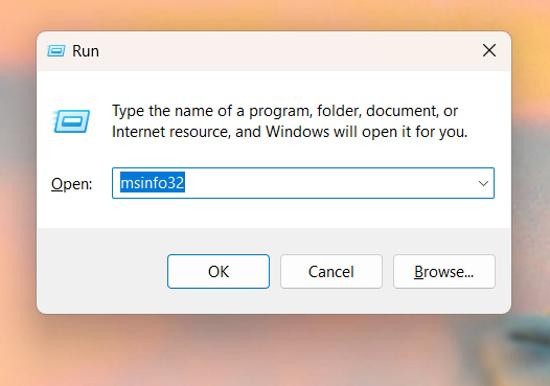
- Press Win + R to open the Run dialog.
Step 2:
- Type msinfo32 and press Enter.
Step 3:
- In the System Information window, navigate to "System Summary" on the left.

You can now view details such as System Model, Processor, Installed Physical Memory, and more in the right pane.
Method 3: Check PC Specifications Using PowerShell
PowerShell is a powerful command line tool that retrieves detailed hardware information.
Step 1:
- Press Win + S to open search bar then on search bar type "Windows PowerShell"
Step 2:
- Type the following command:
Get-ComputerInfo
Step 3:
- Press Enter. After a few seconds, all system information will appear.

Method 4: Check Computer Specifications Using Command Prompt
Use the following simple command to check my computer specifications.
Step 1:
- Press Win + S and type CMD.
Step 2:
- Type the following command and press Enter:
systeminfo

Step 3:
- Wait a few seconds to view the complete system details.
Method 5: Check Computer Specifications Using Task Manager
Task Manager is a useful tool for monitoring system performance and viewing hardware details.
Step 1:
- Right-click the taskbar and choose "Task Manager."

Step 2:
- In the Task Manager window, click on the "Performance" tab.

Step 3:
- Navigate through the various sections to find details like CPU, Memory, and GPU specifications.