
In this we introduces you to the core components of the Windows OS from a hacker’s perspective. You’ll explore how attackers abuse system features like the Windows Registry, services, file system permissions, and event logs to gain unauthorized access, maintain persistence, or cover their tracks.
Through this hands-on labs, you’ll learn:
- How to identify and modify startup persistence mechanisms
- How to manage and analyze user privileges and file permissions
- How to investigate activities using Event Viewer logs
- How attackers use fake services to hide malicious actions
Prerequisites for this lab
- A Windows Operating System VM
- Basic Windows OS Familiarity
1. Windows Registry – Startup Persistence (regedit)
Learn how attackers use the registry to auto-launch programs at startup.
- Press
Win + R, typeregedit, hit Enter. - Navigate to:
HKEY_LOCAL_MACHINE\SOFTWARE\Microsoft\Windows\CurrentVersion\Run - Right-click in the right panel → New > String Value

- Name it:
TestStartup - Double-click it → set Value data to:
calc.exe

- Restart or log off and log back in — Calculator will open automatically.
Practical Application - Malware can use this method to auto-run every time the user logs in.
2. File System Permissions – NTFS Access Control
Understand file/folder permission control using GUI.
- Go to Desktop → Right-click → New > Folder → name it
TestFolder - Right-click
TestFolder→ Properties > Security tab - Click Edit > Add → type your username → click OK.

- Select your username → Deny “Modify” permission

- Click Apply, then try deleting the folder or creating a new one — it will fail.
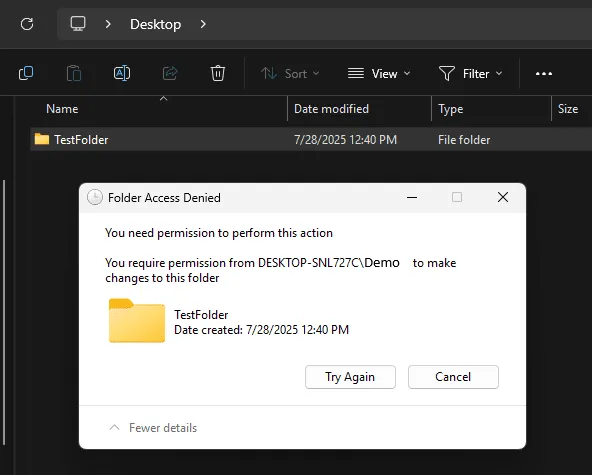
Practical Application - Permissions control who can read, write, or delete files — misconfigurations can be exploited.
3. Event Viewer Basics – Track User Logins
Learn to find system logon records.
- Press
Win + R, typeeventvwr, hit Enter. - Navigate to:
Event Viewer > Windows Logs > Security - Right-click Security → Filter Current Log

- In Event ID, enter:
4624(for successful logon events)

- Click OK. Double-click any event to see login details.

Practical Application - Attackers leave traces, Event Viewer helps track logins and suspicious activity.
4. Simulate a Fake Service using Scheduled Task
Simulate a fake Windows update service using schtasks that silently runs a payload script at every login.
Step 1: Prepare the Payload
- Open Notepad and copy the below given script (you will learn about later in detail) then save the file name as log_writer.bat
@echo off
echo Current Date: >> C:\payload\activity_log.txt
date /t >> C:\payload\activity_log.txt
echo Current User: >> C:\payload\activity_log.txt
whoami >> C:\payload\activity_log.txt
echo. >> C:\payload\activity_log.txt
- Save the batch file at
C:\payload\log_writer.bat - This script logs the date and username to
activity_log.txtevery time it runs.

Step 2: Create the Scheduled Task
- Open PowerShell as Administrator, and run:
schtasks /create /tn "UpdaterTask" /tr "C:\payload\log_writer.bat" /sc onlogon /rl highest- This creates a task named "UpdaterTask" that runs silently at every login with the highest privileges.
Step 3: Test the Task Manually
- Run the task immediately to test:
schtasks /run /tn "UpdaterTask"- Now open:
notepad C:\payload\activity_log.txt- You should see the date and user entry.

Step 4: Validate Persistence
- Restart your VM or log out and log back in
- Open the log file again:
C:\payload\activity_log.txt- You should see a new log entry, showing that the payload ran at login.
Step 5: Cleanup (Optional)
- To delete the fake service simulation task:
schtasks /delete /tn "UpdaterTask" /f