
Twitch Moderator Reference Guide (PC Version)

This note is a reference guide designed for those who have become Twitch moderators, helping you share responsibilities with streamers and easily look up what actions to take based on actual events.
Please use this to help protect the community of the streamer you love.
While you may have your own preferred methods beyond what is in this note, this is a reference guide for those who are completely new to the role. If you have better methods, please feel free to quote this note and introduce them in your own note or article.
Also, this note does not cover the use of any third-party tools.
Utilize Mod View on PC
On the PC version of Twitch, you will perform moderator actions using Mod View.
To access Mod View, click the button at the bottom of the chat box.

Use the shield icon only in emergencies.
You can moderate the stream from the screen accessible via the sword icon.

and you can rearrange the layout of each panel to make it easier for you to manage.
Chat Commands
How to handle a raid

If there is a set rule to shout out the streamer who raided you, send the following command to the chat.
/shoutout Here is an example of how to use it.
/shoutout [TwitchID]

/shoutout uninorem
Dealing with trolls
*While there are several methods, I will introduce the simplest one.
How to identify suspicious users in chat
If a user appears in the chat behaving suspiciously, check their profile card.


Be especially careful with accounts created recently.
Sometimes, a warning will appear here if the user is frequently banned in other streams.
How to temporarily delete comments

there is an option to display buttons that allow you to manage comments
(some people don't enable this for fear of accidental clicks)


From left to right, they are: Ban, Timeout, Warn, and Delete.
To delete a single comment as a moderator from a PC, use the trash can button on the far right.
Sending a warning to an offensive viewer's comment
Moderators can send warnings to viewers in accordance with channel rules.

Warnings can be sent based on channel rules, and moderators can include a reason when sending them.


Timing out users for spamming or multiple violations
This is a useful timeout command for when spam or multiple violation comments occur.
It is best to issue timeouts from the profile card.
Additionally, all comments from that user for the current stream will be deleted when they are timed out.


You can also specify the duration of the timeout yourself.
How to ban a viewer

Depending on your settings, you can also prevent banned users from watching the stream.

is located in the Moderation settings of the Creator Dashboard.
This setting can also be changed by moderators.
Feature for hearing from banned users
When you ban a viewer, you may occasionally receive an unban request.

An unban request is for a banned viewer to appeal to the moderators.
It is the last resort for contact in case a moderator or someone else banned them by mistake.
Emergency response
Emergency response when a streamer is being spammed
When a streamer is targeted by a single viewer spamming messages, in most cases, it is handled by a timeout or a ban.

buttons such as 'Restrict' or 'Ban' on the profile card.
When you perform a timeout or ban, the spam messages sent by that user will be deleted.
When targeted by spam from multiple accounts
If you encounter spam, go to the moderator settings and add the terms to the channel's blocked terms list.


You can add words to block from here.

to block offensive language.
You will encounter this quite often when you have 5-20 concurrent viewers and are just starting your streaming journey.
Emergency response when a streamer is targeted by follow bots or comment bots
It is not uncommon for a streamer to be targeted by multiple comment bots.
If you are hit by bot attacks from multiple accounts, enter Shield Mode immediately.
This is a feature that temporarily significantly increases the requirements for commenting and following on the streamer's channel.

While Shield Mode is very effective at defense, it also restricts comments from regular viewers. Use it only when you are truly in trouble due to multiple bot attacks.

By enabling Shield Mode, you can add words or phrases that are causing trouble at that moment, and you can also review the bots caught by those phrases in bulk.
Also, assistant bots that react to follows or comments, such as StreamElements, Tanuesa 3, Firebot, TriggerFyre, or OneComme plugins, can stop notifications after entering Shield Mode by refreshing the browser source in OBS.
If the streamer is overwhelmed and cannot stop the notifications, the moderator cannot stop them either, so be sure to let them know.
Anti-trolling measures outside of streaming
Post-processing for follow bot attacks
Twitch acknowledges that there are cases where follow counts increase unintentionally due to follow bot attacks. They also note that it is difficult to implement countermeasures against them.
https://safety.twitch.tv/s/article/Combating-Targeted-Attacks?language=en
If you are targeted by follow bots, you need to report the follow bots in bulk. By banning the relevant bots from the activity feed, the information remains in the bulk reporting tool in Moderator View.
In the bulk reporting tool, you can assign a ban reason to users banned for the same reason and report them to Twitch all at once.

However, since there is a limit to the items that appear in the activity feed, such as channel points and Raid receipts, in addition to bot follows, if you do not act quickly, you will exceed the limit and the reporting process will become increasingly cumbersome.
If you are hit by bot attacks like follow bots, handle the post-processing quickly.
Making malicious URLs and words unpostable
Registering blocked words, which is often difficult to handle while flustered during a live stream.

You can access a portion of the Creator Dashboard, so open the Moderation Settings.


There are also privacy settings, and words set to private by the streamer will not be visible to moderators.
(For example, the beginning of a string for an emote of a streamer you dislike?)
Comment Management Section
Enabling/Disabling Channel Points
Moderators can change the status of Channel Points.
While you cannot toggle the visibility of Channel Points, you can pause and resume them.

turn on the toggle switch at the top to pause redemptions.

and Channel Points cannot be redeemed.
Refunding Channel Points to Viewers
The Reward Requests Queue keeps a history of used Channel Points.

Confirming Channel Point Redemptions
The Reward Requests Queue typically keeps a history of used Channel Points.
Streaming Assistance Section
Pinning what the streamer is repeating
Create text for participation rules, event rules, or announcements and post it in the comment section.
You can pin that to the top of the comment section.

You can also pin comments made by others.

A window will appear allowing you to set a time or configure it to remain displayed until manually removed.
Doing this is incredibly helpful for the streamer.
When the stream screen and the Twitch category do not match
Due to factors like the number of monitors, it is very common for the streamer to be unaware of their current Twitch stream category, or for the category change to not have been applied even though they intended to change it.
Moderators can check the category from the Moderator View, but they cannot change it.

Only people with editor permissions and the streamer themselves can change the category.
Since moderators cannot do this, let them know via comments or other means.
When the stream screen and the title do not match
Streamers manually change their stream title every time.
It is often the case that they intend to change the stream title, but it has not been applied.
Moderators can check the stream title from the Moderator View, but they cannot change it.
Please check via comments or other means whether the stream screen matches the title, or if the stream title was successfully changed when they attempted to update it.

When the audio in the stream is strange
The volume balance in the stream is also manually adjusted by the streamer using OBS to match their game and voice chat environment.
It is extremely helpful to the streamer if you pay attention to the following two points:
・The streamer's microphone being muted
・The overall volume balance of the stream
While referring to the volume bar, check the following points and communicate them to the streamer as a moderator.

it is ideal for game audio, BGM, and voices to be heard clearly at 20% on the volume bar.
If you adjust everything to be heard clearly at 100% on the volume bar,
the volume of Twitch commercials will become abnormally loud,
which can cause you to lose valuable viewers.
Also, as shown in the post below, you need to adjust the volume levels for the stream audio as well.
Arranged in order of volume:
1️⃣ Streamer's voice
2️⃣ Voice chat audio
2️⃣ Game audio
3️⃣ BGM
Adjust them so they are balanced in this order.
【定期保存推奨】OBS音量レベルのチェックシートです。
— ひとみマンのOBS学校 (@hitomiman_obs) March 31, 2026
見た目で感覚的にわかる緑,黄色・赤の縮尺なので、ぜひ配信者の方に拡散・保存で届けてあげてください🙇
マイク音は一応黄色表記しておりますが、赤まで到達してもOKです。… pic.twitter.com/FLDC4cOYss
Additionally, depending on the stream situation (for example, during in-game moments), the streamer may have reasons for not wanting BGM to play, so it is important to share that information with the moderators.
When a different screen is showing on the stream
A common streaming issue is when a different screen is accidentally displayed on the stream.

When streamers are playing a game, they rarely check their own stream screen. (They cannot pay much attention to it.)
If you notice that the wrong screen is being displayed on the stream (for example, if an 'Away' screen or text is left on), let the streamer know immediately.
Screen switching errors are an important factor in determining the flow of a stream.
Since it is difficult for anyone other than the viewers to notice these mistakes, be sure to inform the streamer.
How to manage viewer participation streams in cooperation with the streamer
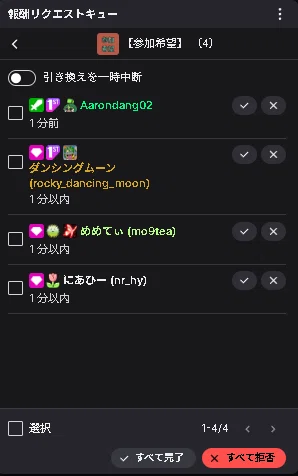
You can return points to viewers who have canceled their participation in a viewer participation stream.
Since it is listed, you can also check the status of the waiting list.
By creating channel points for participation requests, you can build a participation waiting system that both moderators and streamers can manage.
Viewers who have joined can press the check button, and viewers who have canceled their participation can press the X button to have their points returned.
Event Creation Section
Creating Predictions (Channel Point Betting) at the Streamer's Request
Moderators can create channel point bets on behalf of the streamer.
If a moderator creates a bet on behalf of the streamer, that moderator cannot participate in the bet.


Enter the name of the prediction and the results for viewers to choose from,
and set the voting duration.
When you press the 'Start Prediction' button at the bottom right,
the channel point bet will begin.

The points lost by those who guessed incorrectly
will be distributed proportionally among those who guessed correctly.
Creating Polls at the Streamer's Request
You can create polls targeting viewers within the stream.
To create a poll, enter the command /poll in the chat box.

This is the settings menu for creating a poll.

and set the response time.
When you press the 'Start Poll' button,
it will collect poll responses for the specified amount of time.
When you press the 'Start Poll' button, the poll will begin for the viewers.

Conclusion
Here is a rough summary of what moderators can do in a streamer's comment section.
Rather than just acting on the contents of this Note on your own, it is highly recommended to read this note with the streamer to clarify exactly what they want to achieve.
Additionally, by having the streamer read this note, they can expand their options for stream moderation, which may be necessary for building a large community by providing countermeasures for stream titles or audio issues that often cause anxiety during broadcasts.
Everyone becoming proactive about the streamer and their content will likely create a positive trend for community growth!
Please make use of this to help your favorite streamers continue to enjoy streaming on Twitch for a long time!!
About the author of this note