
Preparation for using the Notion API

Introduction
Notion is a highly popular app that serves as an "all-in-one workspace for tasks, notes, and knowledge." Since its API is publicly available, you can create tools using languages like GAS or Python.Notion. Since its API is publicly available, you can create tools using languages like GAS or Python.
In this article, we will proceed with the setup by following the "Getting Started" guide on the site below as preparation for using the Notion API.
Steps
Notes
To use the API, you must be an Admin user of the Notion workspace.
The following screenshots are based on Notion's language setting being set to "Japanese."
Step 1: Create an Integration
Open the My Integrations screen from the URL below.
Click the "New integration" button.

Basic information screen, configure the following two items.
Name
Associate workspace
The "Associate workspace" is the workspace you want to manipulate using the Notion API.
Click "Submit" at the bottom of the screen.

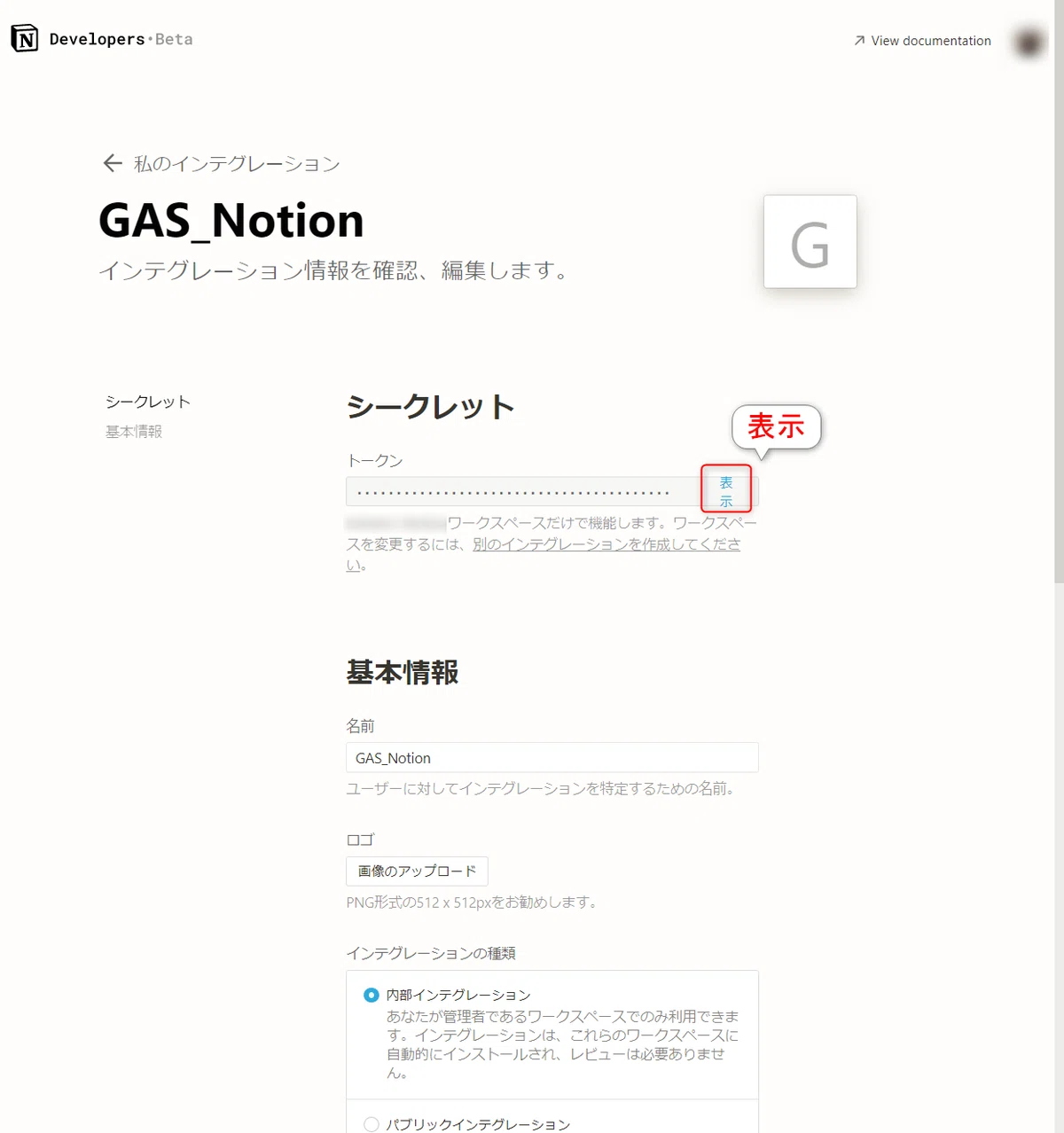
Secrets screen, click "Internal Integration Token field to display the token, then copy and save it. Click "Show" on the right side of the field to display the token, then copy and save it.
Step 2: Connect the created integration to a database
Open the page you want to reference using the Notion API.
Click "…" in the top right corner of that page.

Click "Add connections" from the menu.

From the connections, select the Integration you added in Step 1.

A dialog box will appear asking if you want to proceed; click the "Yes" button here.

You will then be able to confirm that the Integration you created in Step 1 has been added to the connections.

With this, you have successfully connected the Integration you created to the database!
Next, click "Copy link".

If you paste the copied link into a text editor, it should look like the URL below. (The x and y parts will be arbitrary numbers or characters).
https://www.notion.so/xxxxxxxxxxxxxxxxxxxxxxxxxxxxxxxx?v=yyyyyyyyyyyyyyyyyyyyyyyyyyyyyyyy
The bolded string of x's, enclosed between the slash (/) and the question mark (?), is your Database ID. Make sure to note this down as well.
The setup is now complete!
To use the Notion API, you will need the following:
Internal Integration Token
Database ID (DB ID)
Summary
In this article, we summarized the preparation for using the Notion API, including how to create an Integration and how to share it with your database.
Once you have completed these settings, you will be able to perform operations on the shared database using the Notion API.
Next time, I will summarize the process of creating a new page using the Notion API with GAS.