
Highly Recommended for AI Image (Video) Creators: Introducing the Management App 'Eagle'

In this article, I would like to introduce a tool called 'eagle' which is very useful for managing image data and more.
It was originally famous as a tool used by web designers, but it is also very useful for managing AI-generated images.
I personally regret not using it sooner because it is such a user-friendly tool, so please take a look.
Please take a look at this image first to see what it can do.


As you can see, it makes it easy to visually manage all kinds of images and data.
You can take notes on prompts, and above all, the search function is extremely comprehensive.
Personally, I find it very convenient that I can also manage fonts, music, icons, and videos in this way.
Now, let's take a look at how to download it and its basic usage.
About how to download eagle
First, let's open the eagle page from here.

You will see a download button, so select either Mac or Windows and download it.
If you are on a Mac, please select one of the options to download.

After the download is complete, when you open the app, this screen will be displayed.

Please check the privacy policy and click Start. We will skip the browser extension part here.
Please create a library to decide where to store your images.

Using a local folder is fine, but as the number of images increases, you will need a fair amount of storage space.
eagle can also save to the cloud
It can also be linked with cloud services like Google Drive, so if you want to save to the cloud, please make use of that.

Open this page where you can download Drive for desktop. Once the download is complete, log in with your Google account.

Once you are logged in, all you have to do is set the library under your Google Drive. With Drive, you don't have to worry because you can just pay for more storage if you run out. Once all the settings are finished, the eagle screen will appear.

You can easily manage your images just by dropping them here.

About folder management in Eagle
There is a section on the left where you can create folders, so we will use that.
For now, I have created an AI folder and a 'Beautiful Girls' folder underneath it.

When you drop images in that state, they will be stored within that folder.

As you can see, you can check the list of stored images, and I think you can see that it is very convenient visually as well.
You can adjust the display size by using the plus and minus buttons at the top.
For now, I will store a few images I created previously.

This app called Eagle has a very robust search function, and among them, the color filtering feature is very easy to use.
You can enter a color code, or you can adjust the palette to find the specific color tone you want.
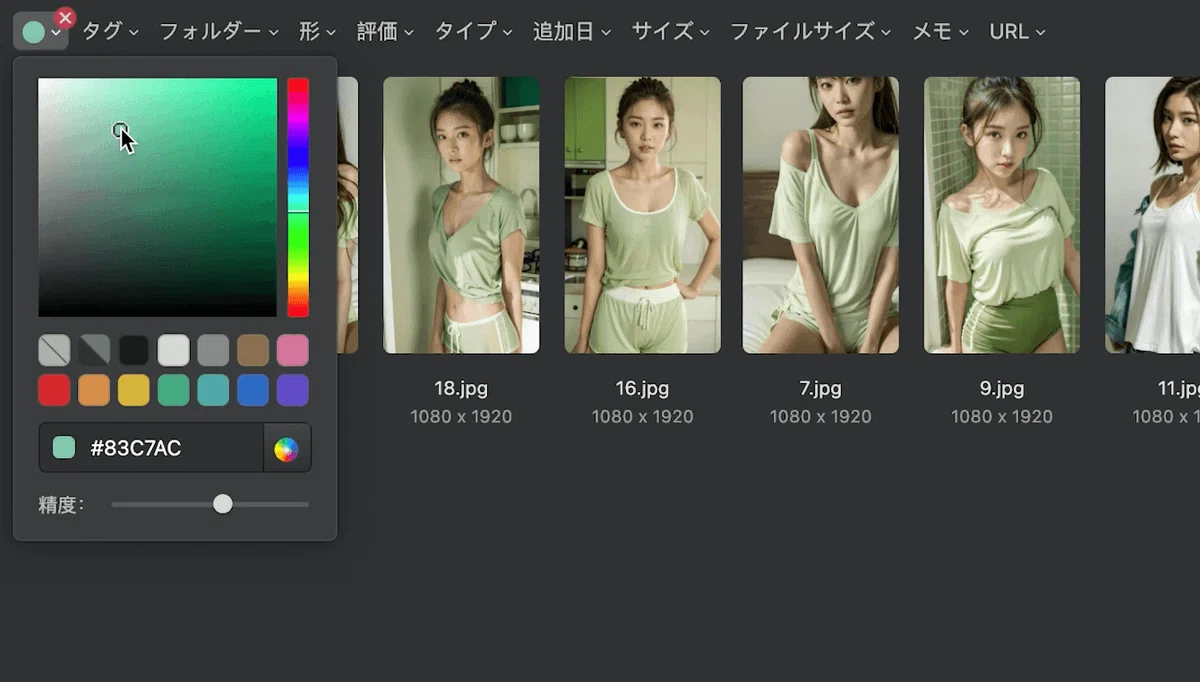
As the number of images increases, I think you will find this feature to be very useful.
When using it with Midjourney
Now that you know the basic usage, let's look at how to utilize it when using Midjourney.
The left half of the screen is the Midjourney screen.
Let's store the bulldog image that is displayed.
This is very simple; you just need to drag and drop the image you want to save directly from Midjourney.
This feature is truly convenient, and I think it will significantly improve efficiency.
On the right side of Eagle, there are fields where you can enter image names, tags, notes, and links.

Tags are useful for searching, and notes are also recommended for storing prompts.

By the way, since part of the prompt is reflected in the Midjourney image name by default, I think it is easy to search even without adding extra tags.
It used to be a huge hassle to look back at past works created with Midjourney, but by using Eagle, you can easily find the image you are looking for.
With an image selected, you can press F on your keyboard to add it to a different folder.
It works the same way on websites
Also, you can use the same features on websites like Pinterest.
For example, you can also save reference materials for banners by dragging and dropping them.

For now, let's just save things randomly. After saving, you can easily change the order.

Organizing them by color shade is also useful when looking back at them later.

You can also manage fonts, music, and videos
Another thing I found convenient is that it is easy to manage fonts, music, and videos.
First, let's look at fonts; as you can see, you can check the styles of saved fonts in a list.

It is very convenient because you can find the font you want to use immediately.
Also, you can save music. Playback starts just by hovering your mouse over it, so this also makes checking audio sources extremely efficient.

Videos also auto-play when you hover over them in the same way.

The time from hovering to playback is also very fast, so you can check them without any stress.
About the price
Regarding the price, Eagle can be tried for free for the first month.
If you want to continue using it in the future, you can purchase a license for $30.

Some people might hesitate if it were a monthly payment, but surprisingly, it is a one-time purchase.
I think you will understand once you use it, but it is definitely a tool that will increase your efficiency. I intended to use it as an app to manage AI-generated images, but it was too convenient for managing other data as well.
Also, it includes lifetime support for version upgrades, so I think it is quite a bargain.

It seems that PayPal is currently the only payment method.
Once you have obtained a license, if you are already logged in, you can perform the operation from the remaining days section in the bottom right.

Click the link for your purchase,

and enter your email address and the license number you obtained.

Once the remaining days are no longer displayed in the bottom right, the registration is complete.
Regarding the error where it keeps displaying 'Initializing'

This is an extra tip, but I once encountered an error where the app would not move past the 'Initializing' display when opening Eagle.
This is also summarized as troubleshooting on the official website, so if you are experiencing a similar error, please check here.
By the way, I use a Mac, but I solved it by opening Finder -> selecting Go from the top menu -> selecting Go to Folder -> and navigating to /Users/username/Library/Application Support
I deleted the Eagle folder located there and opened the Eagle app again, which resolved the issue.
I don't know if this will solve it for everyone, but if you've tried the troubleshooting steps and it didn't work, I think it's worth a try.
Summary
That covers the basic usage.
There are many other features, such as linking it with browser extensions, so please try out various things.
If I discover any other useful ways to use it while I continue using it, I will add them to this note.
Eagle is an app I only learned about a few days ago, but personally, I think it is such a good app that I regret 'not having introduced it sooner.'
I think the number of people creating images and videos using AI will continue to increase in the future, so I recommend getting familiar with this app now.
There is a possibility that the free trial period might end or the price might increase in the future, so if you are interested, please give it a try.