

1. Trước khi bắt đầu
Tìm hiểu cách triển khai tính năng Đăng nhập bằng Google trên Android bằng Trình quản lý thông tin xác thực.
Điều kiện tiên quyết
- Hiểu biết cơ bản về Kotlin để phát triển Android.
- Hiểu biết cơ bản về Jetpack Compose (tìm hiểu thêm).
Kiến thức bạn sẽ học được
- Tạo dự án trên đám mây của Google và ứng dụng OAuth.
- Triển khai quy trình đăng nhập bằng Bảng dưới cùng.
- Triển khai quy trình đăng nhập bằng nút rõ ràng.
Bạn cần có
- Đã cài đặt Android Studio.
- Máy tính đáp ứng yêu cầu về hệ thống của Android Studio và Trình mô phỏng.
- Đã cài đặt Bộ công cụ phát triển Java (JDK).
2. Tạo một dự án Android Studio
Để bắt đầu, hãy tạo một dự án mới trong Android Studio:
- Mở Android Studio rồi nhấp vào New Project (Dự án mới).

- Chọn Điện thoại và máy tính bảng > Hoạt động trống, sau đó nhấp vào Tiếp theo.

- Định cấu hình chế độ cài đặt dự án:
- Tên: Chọn tên dự án.
- Tên gói: Sử dụng tên mặc định hoặc chọn tên của riêng bạn.
- SDK tối thiểu: Chọn phiên bản ổn định mới nhất hoặc > Android 14.

- Nhấp vào Finish (Hoàn tất) rồi đợi quá trình tạo bản dựng dự án ban đầu hoàn tất.

3. Thiết lập dự án trên đám mây của bạn
Tạo một dự án trên Google Cloud
- Truy cập vào Google Cloud Console rồi chọn hoặc tạo một dự án.

- Chuyển đến phần API và Dịch vụ > Màn hình xin phép OAuth.

- Nhấp vào Bắt đầu rồi điền vào các trường bắt buộc:
- Tên ứng dụng: Sử dụng tên của ứng dụng Android.
- Email hỗ trợ người dùng: Chọn Tài khoản Google của bạn.
- Đối tượng: Chọn Bên ngoài.
- Thông tin liên hệ: Nhập địa chỉ email của bạn.

- Xem Dịch vụ API của Google: Chính sách dữ liệu người dùng rồi nhấp vào Tạo.

Thiết lập ứng dụng OAuth
Bạn cần tạo cả Ứng dụng khách trên web và Ứng dụng khách Android trong Google Cloud Console để lấy mã ứng dụng khách cho quá trình xác thực.
- Ứng dụng Android: Bảo mật các yêu cầu bằng cách xác minh tên gói và chữ ký SHA-1 của ứng dụng.
- Ứng dụng web: Hoạt động như ứng dụng phụ trợ cho dịch vụ Đăng nhập bằng Google.
Tạo ứng dụng OAuth 2.0 chạy trên Android
- Trên trang Ứng dụng, hãy nhấp vào Tạo ứng dụng rồi chọn Android làm Loại ứng dụng.

- Nhập tên gói của ứng dụng (khớp với dòng 1 của
MainActivity.kt). - Tạo chữ ký SHA-1. Mở thiết bị đầu cuối Android Studio và chạy:macOS/Linux:
keytool -list -v -keystore ~/.android/debug.keystore -alias androiddebugkey -storepass android -keypass android
keytool -list -v -keystore "C:\Users\USERNAME\.android\debug.keystore" -alias androiddebugkey -storepass android -keypass android
- Sao chép dấu vân tay SHA-1 từ đầu ra của lệnh, dán vào trường Dấu vân tay SHA-1 trong bảng điều khiển rồi nhấp vào Tạo.

Tạo ứng dụng OAuth 2.0 cho web
- Nhấp lại vào Tạo ứng dụng khách rồi chọn Ứng dụng web làm Loại ứng dụng.
- Đặt tên cho ứng dụng web của bạn, để trống các trường URL/Nguồn gốc rồi nhấp vào Tạo.

- Sao chép Mã ứng dụng được tạo từ hộp thoại xác nhận. Bạn sẽ dùng mã này trong mã Kotlin.

4. Thiết lập Thiết bị Android ảo
Để kiểm thử ứng dụng, bạn có thể dùng một thiết bị Android thực hoặc một Thiết bị Android ảo (AVD).
Tạo và chạy AVD
- Trong Android Studio, hãy mở Device Manager (Trình quản lý thiết bị), nhấp vào Create Virtual Device (Tạo thiết bị ảo) (hoặc biểu tượng +), rồi chọn Medium Phone (Điện thoại cỡ trung).
- Chọn phiên bản ổn định gần đây nhất làm hình ảnh hệ thống rồi nhấp vào Kết thúc.
- Chạy trình mô phỏng bằng cách nhấp vào biểu tượng Phát/Chạy bên cạnh thiết bị.

Đăng nhập vào Tài khoản Google trên thiết bị
- Trên trình mô phỏng, hãy mở ứng dụng Cài đặt rồi chuyển đến phần Google.
- Nhấp vào Đăng nhập vào Tài khoản Google của bạn rồi làm theo lời nhắc.

5. Thêm phần phụ thuộc
Thêm các thư viện cần thiết để xác thực và tích hợp Google ID vào dự án của bạn:
- Chuyển đến File > Project Structure > Dependencies > app (Tệp > Cấu trúc dự án > Phần phụ thuộc > ứng dụng).
- Nhấp vào + > Library Dependency, tìm kiếm
com.google.android.libraries.identity.googleid:googleidrồi chọn phiên bản mới nhất (ví dụ:1.1.1). - Nhấp lại vào + > Library Dependency (Phụ thuộc thư viện), tìm kiếm
play-services-authrồi chọn thư viện có Group ID (Mã nhóm) làcom.google.android.gms. - Nhấp vào OK để áp dụng các thay đổi và đồng bộ hoá dự án của bạn.

6. Triển khai quy trình Bảng dưới cùng

Quy trình Bảng dưới cùng tận dụng Credential Manager API để cung cấp một cách thức tinh giản cho người dùng đăng nhập vào ứng dụng của bạn bằng Tài khoản Google trên Android. Được thiết kế để mang lại tốc độ và sự thuận tiện, đặc biệt là cho người dùng cũ, quy trình này sẽ được kích hoạt khi khởi chạy ứng dụng.
Tạo yêu cầu đăng nhập
- Để bắt đầu, hãy mở
MainActivity.ktrồi xoá các hàmGreeting()vàGreetingPreview()mặc định. - Thêm các câu lệnh nhập sau đây sau các câu lệnh hiện có bắt đầu từ dòng 3:
import android.content.Context import android.os.Build import android.util.Log import android.widget.Toast import androidx.annotation.RequiresApi import androidx.compose.foundation.Image import androidx.compose.foundation.clickable import androidx.compose.foundation.layout.Arrangement import androidx.compose.foundation.layout.Column import androidx.compose.material3.MaterialTheme import androidx.compose.material3.Surface import androidx.compose.runtime.Composable import androidx.compose.runtime.LaunchedEffect import androidx.compose.runtime.rememberCoroutineScope import androidx.compose.ui.Alignment import androidx.compose.ui.Modifier import androidx.compose.ui.platform.LocalContext import androidx.compose.ui.res.painterResource import androidx.credentials.CredentialManager import androidx.credentials.CustomCredential import androidx.credentials.GetCredentialRequest import androidx.credentials.exceptions.GetCredentialCancellationException import androidx.credentials.exceptions.GetCredentialCustomException import androidx.credentials.exceptions.GetCredentialException import androidx.credentials.exceptions.NoCredentialException import com.google.android.libraries.identity.googleid.GetGoogleIdOption import com.google.android.libraries.identity.googleid.GetSignInWithGoogleOption import com.google.android.libraries.identity.googleid.GoogleIdTokenCredential import com.google.android.libraries.identity.googleid.GoogleIdTokenParsingException import java.security.SecureRandom import java.util.Base64 import kotlinx.coroutines.delay import kotlinx.coroutines.launch const val TAG = "MainActivity" - Thêm hàm composable này bên dưới lớp
MainActivitytrong tệpMainActivity.kt:@RequiresApi(Build.VERSION_CODES.UPSIDE_DOWN_CAKE) @Composable fun BottomSheet(webClientId: String) { val context = LocalContext.current // LaunchedEffect is used to run a suspend function when the composable is first launched. LaunchedEffect(Unit) { // Create a Google ID option with filtering by authorized accounts enabled. val googleIdOption: GetGoogleIdOption = GetGoogleIdOption.Builder() .setFilterByAuthorizedAccounts(true) .setServerClientId(webClientId) .setNonce(generateSecureRandomNonce()) .build() // Create a credential request with the Google ID option. val request: GetCredentialRequest = GetCredentialRequest.Builder() .addCredentialOption(googleIdOption) .build() // Attempt to sign in with the created request using an authorized account val e = signIn(request, context) // If the sign-in fails with NoCredentialException, there are no authorized accounts. // In this case, we attempt to sign in again with filtering disabled. if (e is NoCredentialException) { val googleIdOptionFalse: GetGoogleIdOption = GetGoogleIdOption.Builder() .setFilterByAuthorizedAccounts(false) .setServerClientId(webClientId) .setNonce(generateSecureRandomNonce()) .build() val requestFalse: GetCredentialRequest = GetCredentialRequest.Builder() .addCredentialOption(googleIdOptionFalse) .build() //We will build out this function in a moment signIn(requestFalse, context) } } } //This function is used to generate a secure nonce to pass in with our request fun generateSecureRandomNonce(byteLength: Int = 32): String { val randomBytes = ByteArray(byteLength) SecureRandom.getInstanceStrong().nextBytes(randomBytes) return Base64.getUrlEncoder().withoutPadding().encodeToString(randomBytes) }
Phân tích mã
LaunchedEffect(Unit): Kích hoạt quy trình đăng nhập ngay khi Thành phần kết hợp xuất hiện lần đầu tiên.GetGoogleIdOption.Builder(): Thiết lập yêu cầu mã thông báo nhận dạng của Google.setFilterByAuthorizedAccounts(true): Đầu tiên, hãy thử đăng nhập thầm lặng bằng cách lọc những tài khoản mà người dùng đã uỷ quyền cho ứng dụng này, giảm thiểu phiền toái cho người dùng cũ.setNonce(...): Truyền một số chỉ dùng một lần ngẫu nhiên an toàn dogenerateSecureRandomNonce()tạo cho mỗi yêu cầu để ngăn chặn các cuộc tấn công phát lại.
signIn(request, context): Thực thi yêu cầu. Nếu thất bại vớiNoCredentialException(nghĩa là không có tài khoản nào được uỷ quyền trước đó), quy trình sẽ quay lạisetFilterByAuthorizedAccounts(false)để cho phép người dùng chọn trong số mọi Tài khoản Google đã đăng nhập trên thiết bị.
Đưa ra yêu cầu đăng nhập
Sau khi tạo yêu cầu đăng nhập, bạn có thể sử dụng Trình quản lý thông tin xác thực để hoàn tất quy trình đăng nhập. Tạo một hàm có tên là signIn để thực thi yêu cầu và xử lý các trường hợp ngoại lệ thường gặp có thể xảy ra.
Thêm hàm này bên dưới hàm BottomSheet trong tệp MainActivity.kt:
@RequiresApi(Build.VERSION_CODES.UPSIDE_DOWN_CAKE)
suspend fun signIn(request: GetCredentialRequest, context: Context): Exception? {
    val credentialManager = CredentialManager.create(context)
    val failureMessage = "Sign in failed!"
    //using delay() here helps prevent NoCredentialException when the BottomSheet Flow is triggered
    //on the initial running of our app
    delay(250)
    return try {
        // The getCredential is called to request a credential from Credential Manager.
        val result = credentialManager.getCredential(
            request = request,
            context = context,
        )
        Log.i(TAG, result.toString())

        val credential = result.credential
        if (credential is CustomCredential &&
            credential.type == GoogleIdTokenCredential.TYPE_GOOGLE_ID_TOKEN_CREDENTIAL) {
            val googleIdTokenCredential = GoogleIdTokenCredential.createFrom(credential.data)
            Log.i(TAG, "Signed in as: ${googleIdTokenCredential.id}")
        }

        Toast.makeText(context, "Sign in successful!", Toast.LENGTH_SHORT).show()
        Log.i(TAG, "(☞゚ヮ゚)☞  Sign in Successful!  ☜(゚ヮ゚☜)")
        null
    } catch (e: GoogleIdTokenParsingException) {
        Toast.makeText(context, failureMessage, Toast.LENGTH_SHORT).show()
        Log.e(TAG, failureMessage + ": Issue with parsing received GoogleIdToken", e)
        e
    } catch (e: NoCredentialException) {
        Toast.makeText(context, failureMessage, Toast.LENGTH_SHORT).show()
        Log.e(TAG, failureMessage + ": No credentials found", e)
        e
    } catch (e: GetCredentialCancellationException) {
        Toast.makeText(context, "Sign-in cancelled", Toast.LENGTH_SHORT).show()
        Log.e(TAG, failureMessage + ": Sign-in was cancelled", e)
        e
    } catch (e: GetCredentialCustomException) {
        Toast.makeText(context, failureMessage, Toast.LENGTH_SHORT).show()
        Log.e(TAG, failureMessage + ": Issue with custom credential request", e)
        e
    } catch (e: GetCredentialException) {
        Toast.makeText(context, failureMessage, Toast.LENGTH_SHORT).show()
        Log.e(TAG, failureMessage + ": Failure getting credentials", e)
        e
    }
}
Phân tích mã
credentialManager.getCredential(...): Gọi Credential Manager API để hiển thị hộp thoại hoặc bảng dưới cùng của trình chọn tài khoản hệ thống.delay(250): Tạm dừng trong thời gian ngắn để ngăn chặn tình huống tương tranh khi bảng dưới cùng được kích hoạt ngay khi khởi động ứng dụng trước khi dịch vụ Trình quản lý thông tin xác thực hoàn tất quá trình khởi tạo.- Xử lý ngoại lệ: Phát hiện và ghi lại các lỗi thông tin xác thực thường gặp (ví dụ: huỷ, thiếu thông tin xác thực hoặc vấn đề phân tích cú pháp mã thông báo) và cung cấp ý kiến phản hồi của người dùng bằng thông báo dạng toast.
Kích hoạt quy trình Bảng dưới cùng
Cập nhật lớp MainActivity để gọi BottomSheet() khi khởi động. Thay thế YOUR_CLIENT_ID_HERE bằng mã ứng dụng khách của Ứng dụng web:
class MainActivity : ComponentActivity() {
    @RequiresApi(Build.VERSION_CODES.UPSIDE_DOWN_CAKE)
    override fun onCreate(savedInstanceState: Bundle?) {
        super.onCreate(savedInstanceState)

        //replace with your own web client ID from Google Cloud Console
        val webClientId = "YOUR_CLIENT_ID_HERE"

        setContent {
            //ExampleTheme - this is derived from the name of the project not any added library
            //e.g. if this project was named "Testing" it would be generated as TestingTheme
            ExampleTheme {
                Surface(
                    modifier = Modifier.fillMaxSize(), color = MaterialTheme.colorScheme.background,
                ) {
                    //This will trigger on launch
                    BottomSheet(webClientId)
                }
            }
        }
    }
}
Lưu dự án (File > Save (Tệp > Lưu)) rồi chạy ứng dụng:
- Nhấn nút chạy:

- Khi ứng dụng khởi chạy trên trình mô phỏng, Trang tính dưới cùng để đăng nhập sẽ xuất hiện. Nhấp vào Tiếp tục để kiểm thử quy trình.

- Thông báo dạng thông báo tạm thời sẽ xuất hiện để xác nhận rằng bạn đã đăng nhập thành công.

7. Triển khai quy trình Button
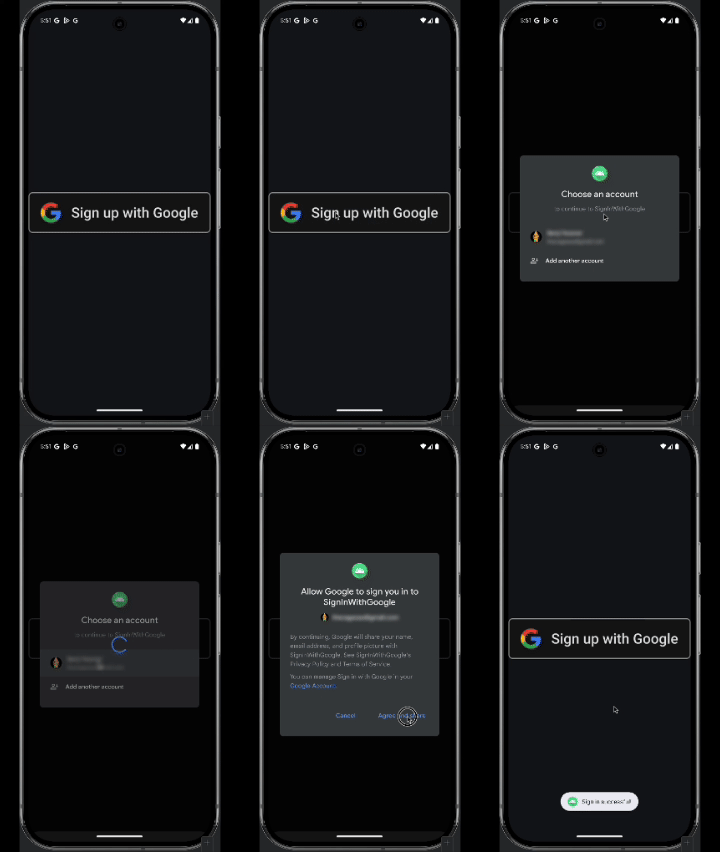
Quy trình Nút cung cấp một lựa chọn rõ ràng để người dùng đăng nhập hoặc đăng ký. Việc sử dụng bộ nhận diện thương hiệu tiêu chuẩn sẽ đảm bảo trải nghiệm nhất quán. Sử dụng các thành phần đã được phê duyệt trước và tuân thủ Nguyên tắc sử dụng thương hiệu của tính năng Đăng nhập bằng Google.
Thêm biểu tượng thương hiệu
- Tải các thành phần liên quan đến thương hiệu xuống tại đây rồi giải nén tệp ZIP.
- Sao chép
signin-assets/Android/png@2x/neutral/android_neutral_sq_SI@2x.png. - Trong Android Studio, hãy dán tệp này vào thư mục res > drawable, đổi tên thành
siwg_button.pngrồi nhấp vào OK.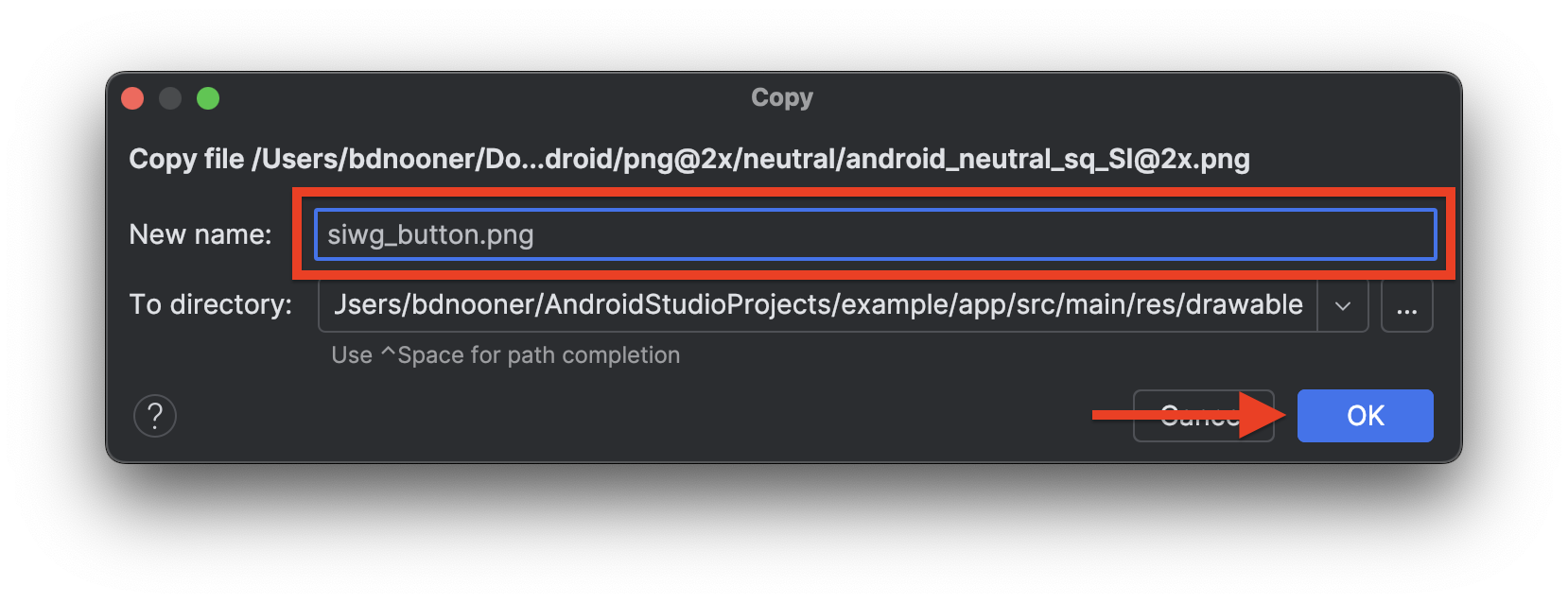
Mã luồng nút
Luồng này sử dụng lại cùng một hàm trợ giúp signIn nhưng truyền GetSignInWithGoogleOption thay vì GetGoogleIdOption. Không giống như quy trình Trang tính dưới cùng, quy trình nút rõ ràng không lọc trước hoặc tự động nhắc về thông tin đăng nhập hoặc khoá truy cập đã lưu trữ. Dán hàm composable này bên dưới hàm BottomSheet:
@RequiresApi(Build.VERSION_CODES.UPSIDE_DOWN_CAKE)
@Composable
fun ButtonUI(webClientId: String) {
    val context = LocalContext.current
    val coroutineScope = rememberCoroutineScope()

    val onClick: () -> Unit = {
        val signInWithGoogleOption: GetSignInWithGoogleOption = GetSignInWithGoogleOption
            .Builder(serverClientId = webClientId)
            .setNonce(generateSecureRandomNonce())
            .build()

        val request: GetCredentialRequest = GetCredentialRequest.Builder()
            .addCredentialOption(signInWithGoogleOption)
            .build()

        coroutineScope.launch {
            signIn(request, context)
        }
    }
    Image(
        painter = painterResource(id = R.drawable.siwg_button),
        contentDescription = "",
        modifier = Modifier
            .fillMaxSize()
            .clickable(enabled = true, onClick = onClick)
    )
}
Phân tích mã
GetSignInWithGoogleOption: Không giống như quy trình Bottom Sheet, quy trình nút rõ ràng sử dụng lựa chọn này để nhắc người dùng chọn Tài khoản Google mà không cần lọc tự động.coroutineScope.launch: Chạy một coroutine để thực thi hàm tạm ngưngsignInkhông đồng bộ khi người dùng nhấp vào nút.Image: Hiển thịsiwg_buttoncó thương hiệu drawable và đính kèm một trình theo dõi lượt nhấp để kích hoạt quy trình.
Thêm Nút vào bố cục của giao diện người dùng
Cập nhật bố cục MainActivity để hiển thị cả BottomSheet tự động và ButtonUI rõ ràng được căn chỉnh theo chiều dọc:
class MainActivity : ComponentActivity() {
    @RequiresApi(Build.VERSION_CODES.UPSIDE_DOWN_CAKE)
    override fun onCreate(savedInstanceState: Bundle?) {
        super.onCreate(savedInstanceState)

        //replace with your own web client ID from Google Cloud Console
        val webClientId = "YOUR_CLIENT_ID_HERE"

        setContent {
            //ExampleTheme - this is derived from the name of the project not any added library
            //e.g. if this project was named "Testing" it would be generated as TestingTheme
            ExampleTheme {
                Surface(
                    modifier = Modifier.fillMaxSize(), color = MaterialTheme.colorScheme.background,
                ) {
                    Column(
                        verticalArrangement = Arrangement.Center,
                        horizontalAlignment = Alignment.CenterHorizontally

                    ) {
                        //This will trigger on launch
                        BottomSheet(webClientId)

                        //This requires the user to press the button
                        ButtonUI(webClientId)
                    }
                }
            }
        }
    }
}
Kiểm thử quy trình Nút
- Chạy ứng dụng.
- Đóng Bảng dưới cùng ban đầu bằng cách nhấp vào bên ngoài vùng bảng.
- Nhấp vào nút Đăng nhập bằng Google để mở hộp thoại đăng nhập, rồi chọn tài khoản của bạn.

- Xác minh kết quả: kiểm tra Logcat để xác nhận thông tin in về tên người dùng/địa chỉ email của bạn.
8. Kết luận
Xin chúc mừng! Bạn đã triển khai thành công tính năng Đăng nhập bằng Google thông qua Trình quản lý thông tin xác thực trên Android.
Tài nguyên khác
- Tài liệu về Trình quản lý thông tin xác thực trên Android
- Hướng dẫn khắc phục sự cố về Trình quản lý thông tin xác thực
- Câu hỏi thường gặp về Trình quản lý thông tin xác thực
- Hỗ trợ StackOverflow
Toàn bộ mã MainActivity.kt
Sau đây là mã đầy đủ cho MainActivity.kt để bạn tham khảo:
package com.example.example

import android.os.Bundle
import androidx.activity.ComponentActivity
import androidx.activity.compose.setContent
import androidx.compose.foundation.layout.fillMaxSize
import androidx.compose.runtime.Composable
import androidx.compose.ui.Modifier
import com.example.example.ui.theme.ExampleTheme
import android.content.ContentValues.TAG
import android.content.Context
import android.util.Log
import android.widget.Toast
import androidx.credentials.exceptions.GetCredentialException
import androidx.compose.foundation.clickable
import androidx.compose.foundation.Image
import androidx.compose.foundation.layout.Arrangement
import androidx.compose.foundation.layout.Column
import androidx.compose.material3.MaterialTheme
import androidx.compose.material3.Surface
import androidx.compose.runtime.rememberCoroutineScope
import androidx.compose.ui.Alignment
import androidx.compose.ui.platform.LocalContext
import androidx.compose.ui.res.painterResource
import androidx.credentials.CredentialManager
import androidx.credentials.exceptions.GetCredentialCancellationException
import androidx.credentials.exceptions.GetCredentialCustomException
import androidx.credentials.exceptions.NoCredentialException
import androidx.credentials.GetCredentialRequest
import com.google.android.libraries.identity.googleid.GetGoogleIdOption
import com.google.android.libraries.identity.googleid.GetSignInWithGoogleOption
import com.google.android.libraries.identity.googleid.GoogleIdTokenParsingException
import java.security.SecureRandom
import java.util.Base64
import kotlinx.coroutines.CoroutineScope
import androidx.compose.runtime.LaunchedEffect
import kotlinx.coroutines.delay
import kotlinx.coroutines.launch

class MainActivity : ComponentActivity() {
    @RequiresApi(Build.VERSION_CODES.UPSIDE_DOWN_CAKE)
    override fun onCreate(savedInstanceState: Bundle?) {
        super.onCreate(savedInstanceState)

        //replace with your own web client ID from Google Cloud Console
        val webClientId = "YOUR_CLIENT_ID_HERE"

        setContent {
            //ExampleTheme - this is derived from the name of the project not any added library
            //e.g. if this project was named "Testing" it would be generated as TestingTheme
            ExampleTheme {
                Surface(
                    modifier = Modifier.fillMaxSize(), color = MaterialTheme.colorScheme.background,
                ) {
                    Column(
                        verticalArrangement = Arrangement.Center,
                        horizontalAlignment = Alignment.CenterHorizontally

                    ) {
                        //This will trigger on launch
                        BottomSheet(webClientId)

                        //This requires the user to press the button
                        ButtonUI(webClientId)
                    }
                }
            }
        }
    }
}

@RequiresApi(Build.VERSION_CODES.UPSIDE_DOWN_CAKE)
@Composable
fun BottomSheet(webClientId: String) {
    val context = LocalContext.current

    // LaunchedEffect is used to run a suspend function when the composable is first launched.
    LaunchedEffect(Unit) {
        // Create a Google ID option with filtering by authorized accounts enabled.
        val googleIdOption: GetGoogleIdOption = GetGoogleIdOption.Builder()
            .setFilterByAuthorizedAccounts(true)
            .setServerClientId(webClientId)
            .setNonce(generateSecureRandomNonce())
            .build()

        // Create a credential request with the Google ID option.
        val request: GetCredentialRequest = GetCredentialRequest.Builder()
            .addCredentialOption(googleIdOption)
            .build()

        // Attempt to sign in with the created request using an authorized account
        val e = signIn(request, context)
        // If the sign-in fails with NoCredentialException,  there are no authorized accounts.
        // In this case, we attempt to sign in again with filtering disabled.
        if (e is NoCredentialException) {
            val googleIdOptionFalse: GetGoogleIdOption = GetGoogleIdOption.Builder()
                .setFilterByAuthorizedAccounts(false)
                .setServerClientId(webClientId)
                .setNonce(generateSecureRandomNonce())
                .build()

            val requestFalse: GetCredentialRequest = GetCredentialRequest.Builder()
                .addCredentialOption(googleIdOptionFalse)
                .build()

            signIn(requestFalse, context)
        }
    }
}

@RequiresApi(Build.VERSION_CODES.UPSIDE_DOWN_CAKE)
@Composable
fun ButtonUI(webClientId: String) {
    val context = LocalContext.current
    val coroutineScope = rememberCoroutineScope()

    val onClick: () -> Unit = {
        val signInWithGoogleOption: GetSignInWithGoogleOption = GetSignInWithGoogleOption
            .Builder(serverClientId = webClientId)
            .setNonce(generateSecureRandomNonce())
            .build()

        val request: GetCredentialRequest = GetCredentialRequest.Builder()
            .addCredentialOption(signInWithGoogleOption)
            .build()

        coroutineScope.launch {
            signIn(request, context)
        }
    }
    Image(
        painter = painterResource(id = R.drawable.siwg_button),
        contentDescription = "",
        modifier = Modifier
            .fillMaxSize()
            .clickable(onClick = onClick)
    )
}

fun generateSecureRandomNonce(byteLength: Int = 32): String {
    val randomBytes = ByteArray(byteLength)
    SecureRandom.getInstanceStrong().nextBytes(randomBytes)
    return Base64.getUrlEncoder().withoutPadding().encodeToString(randomBytes)
}

@RequiresApi(Build.VERSION_CODES.UPSIDE_DOWN_CAKE)
suspend fun signIn(request: GetCredentialRequest, context: Context): Exception? {
    val credentialManager = CredentialManager.create(context)
    val failureMessage = "Sign in failed!"
    //using delay() here helps prevent NoCredentialException when the BottomSheet Flow is triggered
    //on the initial running of our app
    delay(250)
    return try {
        // The getCredential is called to request a credential from Credential Manager.
        val result = credentialManager.getCredential(
            request = request,
            context = context,
        )
        Log.i(TAG, result.toString())

        val credential = result.credential
        if (credential is CustomCredential &&
            credential.type == GoogleIdTokenCredential.TYPE_GOOGLE_ID_TOKEN_CREDENTIAL) {
            val googleIdTokenCredential = GoogleIdTokenCredential.createFrom(credential.data)
            Log.i(TAG, "Signed in as: ${googleIdTokenCredential.id}")
        }

        Toast.makeText(context, "Sign in successful!", Toast.LENGTH_SHORT).show()
        Log.i(TAG, "(☞゚ヮ゚)☞  Sign in Successful!  ☜(゚ヮ゚☜)")
        null
    } catch (e: GoogleIdTokenParsingException) {
        Toast.makeText(context, failureMessage, Toast.LENGTH_SHORT).show()
        Log.e(TAG, failureMessage + ": Issue with parsing received GoogleIdToken", e)
        e
    } catch (e: NoCredentialException) {
        Toast.makeText(context, failureMessage, Toast.LENGTH_SHORT).show()
        Log.e(TAG, failureMessage + ": No credentials found", e)
        e
    } catch (e: GetCredentialCancellationException) {
        Toast.makeText(context, "Sign-in cancelled", Toast.LENGTH_SHORT).show()
        Log.e(TAG, failureMessage + ": Sign-in was cancelled", e)
        e
    } catch (e: GetCredentialCustomException) {
        Toast.makeText(context, failureMessage, Toast.LENGTH_SHORT).show()
        Log.e(TAG, failureMessage + ": Issue with custom credential request", e)
        e
    } catch (e: GetCredentialException) {
        Toast.makeText(context, failureMessage, Toast.LENGTH_SHORT).show()
        Log.e(TAG, failureMessage + ": Failure getting credentials", e)
        e
    }
}